Showing posts with label NMEA. Show all posts

Tuesday, August 12, 2014

Raspberry PI on board: the numbers!

Using the Charger Doctor from Adafruit, I was able to see how much the Raspberry PI is drawing when at work.
When it boots, with the 7" RCA screen on, it takes 0.24 Amps.
This remains the same when starting the Headless Console, with user-exits, battery monitoring, and re-broadcasting on HTTP and TCP.
When the small RCA screen is turned off, the consumption drops to 0.19 to 0.20 Amps.

As P = UI, that means that the Raspberry PI at works takes about 1 Watt (5v × 0.2 A).
This even below what the Raspberry PI documentation is saying!

Thursday, April 10, 2014

Introducing live wallpaper in the Navigation Desktop

The foreground data were not very convenient, they are now replaced with a "Live Wallpaper".
And there is also an option to put the desktop in full screen.

Tuesday, April 1, 2014

NMEA Multiplexing, with Raspberry PI and sensors

This is a first test, but already promising... See details here. Still working on the Atmospheric Pressure for OpenCPN, trying to manage the MDA NMEA Sentence. More to come, stay tuned.

Tuesday, March 25, 2014

SPOT Parser in the Console

We already had one Web version of a SPOT Parser, we now have one embedded in the Navigation Console. It allows the manipulation of the SPOT bulletins even if you are far from the Internet...
It also comes with a possibility to compose your own SPOT request.
At sea, you would compose your request (possibly with the data from the GPS), paste it into your Airmail client to send it through SailMail.
Once the response is in your inbox, you paste it in the utility featured above, and you have a graphical rendering of the SPOT data.
Enjoy!

Monday, December 16, 2013

Introducing Console User-Exits

There are many things to do with the NMEA Data available in the cache, and the console is just doing a little - obvious - part of them.
In order for the users to implement their own features and ideas, we now provide a "user-exit" mechanism.
The user-exits are to be written in Java, and implement a specific interface named olivsoftdesktop.DesktopUserExitInterface, and defined as foillow:
      
     1  package olivsoftdesktop;
     2  
     3  public interface DesktopUserExitInterface
     4  {
     5    public void start();
     6    public void stop();
     7    public void describe();
     8  }
      
    
It could probably not be any simpler.

A Simple User-exit implementation

To develop your own features, you would need to put - at least - into your classpath:
  • desktop.jar
And probably, to access the NMEA Data Cache:
  • nmeaparser.jar
  • nmeareader.jar
  • coreutilities
  • geomutil.jar
Then, write your code, and archive it into a jar-file.
Here is a simple implementation of this interface. This one evaluates the True Wind Speed every time a sentence is received from the NMEA station, and displays a message if the TWS is above 10 knots.
See how the NMEAReaderListener is registered.
      
     1  package olivsoftdesktop.sampleue;
     2  
     3  import nmea.event.NMEAReaderListener;
     4  import nmea.server.ctx.NMEAContext;
     5  import nmea.server.ctx.NMEADataCache;
     6  import ocss.nmea.parser.Angle360;
     7  import ocss.nmea.parser.Speed;
     8  import olivsoftdesktop.DesktopUserExitInterface;
     9  
    10  public class UserExitSample
    11    implements DesktopUserExitInterface
    12  {
    13    public UserExitSample()
    14    {
    15      super();
    16    }
    17  
    18    @Override
    19    public void start()
    20    {
    21      System.out.println("User exit is starting...");
    22      NMEAContext.getInstance().addNMEAReaderListener(new NMEAReaderListener()
    23      {
    24          @Override
    25          public void manageNMEAString(String nmeaString)
    26          {
    27  //        System.out.println("     ... From user exit, got NMEA Data [" + nmeaString + "]");
    28            NMEADataCache dc = NMEAContext.getInstance().getCache();
    29            double tws = ((Speed) dc.get(NMEADataCache.TWS)).getValue();
    30            double twd = ((Angle360) dc.get(NMEADataCache.TWD)).getValue();
    31            if (tws > 10 && !Double.isInfinite(tws))
    32            {
    33              System.out.println("Wind is over 10 kts:" + tws + ", TWD:" + twd);
    34              // TODO Send an email...
    35            }
    36          }
    37      });
    38    }
    39  
    40    @Override
    41    public void stop()
    42    {
    43      System.out.println("Terminating User exit");
    44    }
    45  
    46    @Override
    47    public void describe()
    48    {
    49      System.out.println("This is a simple user-exit example that shows howto register an NMEAReaderListener from your code.");
    50    }
    51  }


User-exit runtime

To have your user-exit to be taken care if, you need to:
  • Archive it in a jar-file, and put the jar (along with the ones it may depend on) in one of the following directories
    • all-user-exits (recommended)
    • all-libs
    • all-3rd-party
  • Mention the name of the user-exit in the command-line parameters, like -ue:myspecial.feature.SuperUserExit. For the example above, the parameter would be -ue:olivsoftdesktop.sampleue.UserExitSample.
And that's it. This works from the console, as well as from the headless one.

A more complex sample

Here is the scenario:
You have an internet connection on the boat, it is docked or anchored in the harbor.
From wherever you are, you want to know what the wind is like where the boat is.
This user-exit monitors the True Wind Speed (TWS), and send an email when it is above a given threshold. It looks at the wind speed every X minutes, the X comes from a configuration file (email.properties) that can be edited.
      
     1  package olivsoftdesktopuserexits;
     2  
     3  import java.io.FileInputStream;
     4  import java.text.DecimalFormat;
     5  import java.text.SimpleDateFormat;
     6  import java.util.Calendar;
     7  import java.util.Date;
     8  import java.util.Properties;
     9  import java.util.TimeZone;
    10  import nmea.server.ctx.NMEAContext;
    11  import nmea.server.ctx.NMEADataCache;
    12  import ocss.nmea.parser.Angle360;
    13  import ocss.nmea.parser.GeoPos;
    14  import ocss.nmea.parser.Speed;
    15  import ocss.nmea.parser.UTCDate;
    16  import olivsoftdesktop.DesktopUserExitInterface;
    17  import olivsoftdesktopuserexits.emailutil.EmailSender;
    18  
    19  public class DesktopEmailSender
    20    implements DesktopUserExitInterface
    21  {
    22    private final static SimpleDateFormat SDF = new SimpleDateFormat("yyyy-MMM-dd HH:mm:ss");
    23    private final static DecimalFormat DF22   = new DecimalFormat("##0.00 'kts'");
    24    private final static DecimalFormat DF30   = new DecimalFormat("##0'\272'");
    25    private static String SEND_PROVIDER = "google";
    26    private Thread watcher = null;
    27    private boolean keepWatching = true;
    28    private EmailSender sender = null;
    29  
    30    private double windThreshold = -1;
    31    private long betweenLoops = 600 * 1000L; // 10 minutes default
    32  
    33    public DesktopEmailSender()
    34    {
    35      super();
    36    }
    37  
    38    @Override
    39    public void start()
    40    {
    41      System.out.println("Method 'start':" + this.getClass().getName() + " User exit is starting...");
    42      Properties props = new Properties();
    43      String propFile = "email.properties";
    44      try
    45      {
    46        FileInputStream fis = new FileInputStream(propFile);
    47        props.load(fis);
    48      }
    49      catch (Exception e)
    50      {
    51        System.err.println("email.properies file problem..., from " + System.getProperty("user.dir"));
    52        throw new RuntimeException("File not found:email.properies");
    53      }
    54      SEND_PROVIDER = props.getProperty("ue.preferred.provider", SEND_PROVIDER);
    55      sender = new EmailSender(SEND_PROVIDER);
    56      try
    57      {
    58        windThreshold = Double.parseDouble(props.getProperty("ue.wind.threshold"));
    59        System.out.println("Will send emails when the wind is above [" + windThreshold + "]");
    60      }
    61      catch (NumberFormatException nfe)
    62      {
    63        throw new RuntimeException("Bad wind threshold:" + props.getProperty("ue.wind.threshold"));
    64      }
    65      try
    66      {
    67        betweenLoops = Long.parseLong(props.getProperty("ue.between.loops.in.minute"));
    68      }
    69      catch (NumberFormatException nfe)
    70      {
    71        throw new RuntimeException("Bad Loop interval:" + props.getProperty("ue.between.loops.in.minute"));
    72      }
    73      final long _betweenLoops = betweenLoops;
    74      watcher = new Thread()
    75        {
    76          private boolean started = false;
    77          private final long BETWEEN_LOOPS = _betweenLoops * 60 * 1000;
    78          private final long TEN_SECONDS   =  10000L;
    79          private long waitTime = BETWEEN_LOOPS;
    80          public void run()
    81          {
    82            while (keepWatching)
    83            {
    84              waitTime = BETWEEN_LOOPS;
    85              NMEADataCache dc = NMEAContext.getInstance().getCache();
    86              try
    87              {
    88                double tws = ((Speed) dc.get(NMEADataCache.TWS)).getValue();
    89                double twd = ((Angle360) dc.get(NMEADataCache.TWD)).getValue();
    90                String date = "";
    91                UTCDate utcDate = (UTCDate)NMEAContext.getInstance().getCache().get(NMEADataCache.GPS_DATE_TIME);
    92                if (utcDate != null && utcDate.getValue() != null)
    93                {
    94                  Date d = utcDate.getValue();
    95                  Calendar cal = Calendar.getInstance();
    96                  cal.setTime(d);
    97                  cal.setTimeZone(TimeZone.getTimeZone("Etc/UTC"));
    98                  date = SDF.format(cal.getTime());
    99                }
   100                String pos = "";
   101                try { pos = ((GeoPos)dc.get(NMEADataCache.POSITION)).toString(); } catch (Exception ex) {}
   102                if (!started)
   103                {
   104                  started = true;
   105                  System.out.println(" -- User exit started for good.");
   106                }
   107                if (tws > windThreshold && !Double.isInfinite(tws))
   108                {
   109                  String alertMessage =
   110                    (date.trim().length() > 0 ? "Date:" + date + "\n": "") +
   111                    (pos.trim().length() > 0 ? "Pos:" + pos + "\n" : "") +
   112                    "Wind is over " + DF22.format(windThreshold) + ":" + DF22.format(tws) + ", TWD:" + DF30.format(twd);
   113                  System.out.println(alertMessage);
   114                  // Send an email...
   115                  try
   116                  {
   117                    sender.send(alertMessage);
   118                    System.out.println("Email sent.");
   119                  }
   120                  catch (Exception ex)
   121                  {
   122                    System.err.println("Sending email failed through [" + SEND_PROVIDER + "]");
   123                    ex.printStackTrace();
   124                  }
   125                }
   126              }
   127              catch (NullPointerException npe)
   128              {
   129                // Just wait til next time...
   130                System.out.println("Cache not initialized (yet)");
   131                waitTime = TEN_SECONDS;
   132              }
   133              synchronized (this)
   134              {
   135                System.out.println("  ...User exit going to wait, at " + new Date().toString() + " (will wait for " + (waitTime / 1000) + " s)");
   136                try { wait(waitTime); }
   137                catch (InterruptedException ie)
   138                {
   139                  System.out.println("Told to stop!");
   140                  keepWatching = false;
   141                }
   142              }
   143            }
   144            System.out.println("Stop waiting.");
   145          }
   146        };
   147      keepWatching = true;
   148      watcher.start();
   149    }
   150  
   151    @Override
   152    public void stop()
   153    {
   154      System.out.println(this.getClass().getName() + " is terminating");
   155      keepWatching = false;
   156      synchronized (watcher)
   157      {
   158        watcher.notify();
   159      }
   160    }
   161  
   162    @Override
   163    public void describe()
   164    {
   165      System.out.println("Polls the NMEA Cache on a regular base, and sends an email if the TWS is above a given threshold.");
   166      System.out.println("Driven by a properties file named email.properties, in the all-scripts directory.");
   167    }
   168  }      
      
All the sources of this example.

Possibilities are endless. The limit is your imagination.
Combining the two examples above, you can as well gather all the data into a single document (XML, json, etc), and send it through email on a regular base, so it can be rendered by the receipient.
Etc, etc...

How to do it for yourself, step by step

  1. Download all the sources, in the zip mentionned above
  2. Extract it is a new clean directory
  3. Make sure the jar mail.jar is in your all-3rd-party directory
  4. Make sure you have installed a JDK in your environment
  5. In a system console, navigate to the directory where you unzipped the sources
  6. If it does not exist, create a classes directory. Make sure it is empty
  7. Compile the code:
    On Windows
     Prompt> set OLIV_HOME=D:\OlivSoft
     Prompt> set CP=%OLIV_HOME%\all-3rd-party\mail.jar
     Prompt> set CP=%CP%;%OLIV_HOME%\all-libs\nmeaparser.jar
     Prompt> set CP=%CP%;%OLIV_HOME%\all-libs\nmeareader.jar
     Prompt> set CP=%CP%;%OLIV_HOME%\all-libs\desktop.jar
     Prompt> set CP=%CP%;%OLIV_HOME%\all-libs\geomutil.jar
     Prompt> javac -d classes -sourcepath src -cp %CP% src\olivsoftdesktopuserexits\*.java
            
    On Linux
     
     Prompt> bash
     Prompt> OLIV_HOME=/usr/OlivSoft
     Prompt> CP=$OLIV_HOME/all-3rd-party/mail.jar
     Prompt> CP=$CP:$OLIV_HOME/all-libs/nmeaparser.jar
     Prompt> CP=$CP:$OLIV_HOME/all-libs/nmeareader.jar
     Prompt> CP=$CP:$OLIV_HOME/all-libs/desktop.jar
     Prompt> CP=$CP:$OLIV_HOME/all-libs/geomutil.jar
     Prompt> javac -d classes -sourcepath src -cp $CP src/olivsoftdesktopuserexits/*.java
            
    Make sure you do not see any error.
  8. Archive the generated classes:
    On Windows
     
     Prompt> cd classes
     Prompt> jar -cvf ..\emailUserExit.jar *
            
    On Linux
     
     Prompt> cd classes
     Prompt> jar -cvf ../emailUserExit.jar *
            
  9. Copy the archive in the all-user-exits directory
    On Windows
     
     Prompt> cd ..
     Prompt> copy *.jar %OLIV_HOME%\all-user-exits
            
    On Linux
     
     Prompt> cd ..
     Prompt> cp *.jar $OLIV_HOME/all-user-exits
            
    Copy email.properties in the all-scripts directory
    On Windows
     
     Prompt> copy email.properties %OLIV_HOME%\all-scripts
            
    On Linux
     
     Prompt> cp email.properties $OLIV_HOME/all-scripts
            
    You are almost done...
  10. Modify the line that starts the console, so it takes your work in account:
    On Windows
     
    set COMMAND=java %JAVA_OPTIONS% -classpath %CP% olivsoftdesktop.OlivSoftDesktop %HEADLESS_OPTIONS% -ue:olivsoftdesktopuserexits.DesktopEmailSender
    start "Headless Console (User-Exit)" %COMMAND%
            
    On Linux
     
    java $JAVA_OPTIONS -classpath $CP olivsoftdesktop.OlivSoftDesktop $HEADLESS_OPTIONS -ue:olivsoftdesktopuserexits.DesktopEmailSender &
            
    That's it!
    Important: Do not forget to edit and modify email.properties, so it matches your environment, and your needs.
And all this runs just fine on a Raspberry PI, I've tested it.

Monday, November 18, 2013

Multiple Access, for real

Now we've setup the ad-hoc network from the Raspberry PI reading the NMEA Data, we can simultaneously access the data, from several devices connected on the ad-hoc network defined on the boat, from the Raspberry PI itself:
Swing Console from a laptop
OpenCPN from a laptop
HTML Console from a laptop
HTML Console from an iPad
HTML Console from an iPhone
All the pictures above were taken with all the programs on the devices running simultaneously.
A small glitch I need to address: Android does not want to connect to an ad-hoc network. I need to fix that, more to come soon.

Saturday, November 9, 2013

NMEA with Raspberry PI: All Good!

The last step - after this one - was not as straight forward. But finally, everything works fine.
The idea was to use PI4J to read the serial port (/dev/ttyAMA0). All the tests I made with PI4J were all very positive, but apparently, there is a bug when the baud rate is 4800. And unfortunately, this is the one we need.
But as reading a USB port (/dev/ttyUSB0) was not a problem, a simple adapter (serial 9 pin to USB) fixed everything. And on Linux (Raspberry PI runs Linux, a tweaked version of Debian), no driver or any such thing is required. Plug it in, and boom! It works.
The Raspberry PI reads the serial port with the headless console, and rebroadcasts everything appropriately.
The NMEA Console and OpenCPN can use TCP to get the data, The html5 Console uses HTML..., everything goes seamlessly. For less than 700mA. And around $50.
We will detail later all the steps to go through to get this done anywhere. This is just an easy check list.
And we'll built a nice box to host all this. The Raspberry, an optional small screen, and possibly a small keyboard.
More soon.

And just to give you a taste of what will come next,node.js works like a charm on the Raspberry PI, and the WebSocket protocol works as if it had been designed for this platform... That is going to seriously rock.

To summarize

This project goes along with the NMEA console, found here.

The main points this project addresses:
  • Serial ports (most of the data we're interested in come through a serial port) are accessed exclusively. Only one program at a time can access the data. I had the problem on the ketch, when the cartography soft was accessing the data port (to plot the boat on the chart), the console (the one evaluating current and performances) had to wait.
  • The laptop you can use to read the data draws a substantial amount of electricity (around 10W is not unusual).
  • Several devices on the boat (tactician, driver, navigator, trimmers) might need to have simultaneous access to the data, and they might need to be already processed and smoothed (damped)
The various devices needing access to the data might not run the same Operating System (MacOS, iOS, Android, Windows, Linux...). We assumed here that they have a network access, and a browser supporting HTML5 (the tests I made for this particular point are positive).
So, here is the story:
  1. The Raspberry PI creates its own ad-hoc network when it boots, and you start on it a utility that reads the data from the serial (or whatever) port connected to the NMEA station
  2. The data are read, and stored on the raspberry in some cache (a hashmap).
  3. The data are logged (optional), and processed (true wind is calculated, current is evaluated, VMG - on the wind or on the mark, performance, are evaluated). Those data are cached as well. Those calculations require some parameters to be set (max leeway, deviation curves, polars of the boat, some coefficients for the instruments, etc), they are available on the Raspberry PI.
  4. The data rebroadcasted on TCP, UDP, and HTML (also possibly RMI; I dropped GPSd). You can select one or more of those channels for rebroadcasting.
Basically, this is all the RaspPi is doing.

The SD card containing the OS of the PI needs to be 4Gb big, minimal recommended. Mine is 8, and it can go beyond 32. This allows DAYS of logging.

Now, when a device from the boat wants to see what's going on (i.e. visualize the data), it connects to the boat's ad-hoc network. Then, depending on its possibilities and needs, it can use the NMEA Console (that one can read any channel for its data input), or the HTML5 Console (at the bottom of this page).

The chart plotting program (like OpenCPN) can use the exact same data stream.
And when you're done watching your device, you can turn it off, hibernate it, what not, the RaspPi keeps reading and broadcasting.

The RaspPi does not take more than 700mA.
And it costs less than $50.
The RaspPi does not need any keyboard or screen. (I use SSH from a laptop to start the reading program on it).
The main points are:
  • Low consumption (and low price, if it makes any sense in this context)
  • Data rebroadcasting
  • Logging (ages of logging).
    I log VWR, RMC, MWV, RMB, VHW, VLW, HDG, MTW and GLL. It's about 1 Mb per hour.
    One day would be 24 Mb. One week around 168 Mb. Peanuts.
I have a lot of data, some logged during our Polynesian trip, I can replay them. This story seems to work.

I was very interested during the recent America's Cup, to see all the crews watching several kind of devices..., many had those displays on their fore-arms, tacticians had some iPad-like devices, fasten on their bellies with some shock-cords and velcro..., it kind of rang a bell! Those boats had for sure way more sensors that just an NMEA station (up to 3000 sensors for Oracle, I heard), but I believe that there is already a LOT to do with the data you can get from a regular NMEA station.

Once the ad-hoc network is setup, the crew members can even use their smart phone to access it, and visualize the HTML5 Console. That actually enhances one point: All the technology is here - nothing has been built or invented specially for this project. It's all about getting access to it with existing devices and techniques. Everyone (including me!) now has a smartphone, Linux has been around for ages, NMEA is one of the (if not THE) oldest standards in IT... And again, a small device you can get for less that $50 makes it all possible!
I like that.

Monday, November 4, 2013

From Scratch to NMEA Re-broadcasting on TCP, with a Raspberry PI

This post will demonstrate how to connect a Raspberry PI on some NMEA input - a GPS in this case - to re-broadcast all its data using other protocols, HTTP and TCP in this case.
The cool thing about this configuration is that:
  • As many devices as you want can access the NMEA data
  • The Raspberry PI only draws 700 mA
  • When they're done using rthe NMEA data, devices (laptops, tablets...) can shutdown, the NMEA data will still be read and available whenever a device connects on the Raspberry Pi's network
The NMEA data being read can also be logged on the Raspberry PI, if necessary.

We assume that you already have a Raspberry PI, along with its power supply (AC or DC, whatever).
We will show how to setup everything so the Raspberryt PI reads the NMEA data, and re-broadcasts them. As an example, we will show how to consume them from OpenCPN.
We will also need to edit several configuration files and other scripts. You can use any editor you wish, "nano" can do the job, I myself prefer "vi". At the end of the day, that's the same, only the result is important.

Requirements

First, flash the SD card, as explained here. I used the Raspbian image. Comes with Java.
Next, we will require several softwares to be installed on the Raspberry PI, some are necessary, others are convenient.

An FTP server

This one will be very convenient when you will need to transfer files on you Raspberry PI.
To install, type:

 Prompt> sudo apt-get install vsftpd
    
Then edit (sudo edit) /etc/vsftpd.conf:

 anonymouse_enable=NO
 local_enable=YES
 write_enable=YES
 local_umask=022
 chroot_local_user=YES
 user_sub_token=$USER
 local_root=/home/$USER/ftp
    
Start this ftp as a service on the PI:
  
  Prompt> sudo service vsftpd restart
    

Install RXTX Java libraries

Read this good article.
Just type:

 Prompt> sudo apt-get install librxtx-java
    
We will see in the next section what to do with this.

Fing

A very cool utility. Combination of Find and Ping.

 Prompt> wget http://www.overlooksoft.com/packages/download?plat=arm
 Prompt> sudo dpkg -i overlook-fing-2.3.deb
 Prompt> sudo apt-get install libpcap*
    
and finally:

 Prompt> sudo fing
    

OlivSoft

You have just installed the libraries you need to use the serial ports (Serial or USB), now we need to modify the launching script to take that in account.
Make sure you have the last version of the soft, up to date.
It is available on Google Code, in the download section.
The best way to do that is probably to install it on a box connected to the internet, and to let the software update itself.
Then you can transfer all the directory where it is installed (using FTP) on the Raspberry PI.
Once this is done, navigate to the all-scripts directory, and edit the script named olivsoft.
You can add a line in the menu:

  echo \| P for Weather Wizard, with http proxy 
  echo \| S for NMEA Sniffer
  echo \| H for Headless NMEA Console
  echo \| POL for Polar Tool
    
... and then the corresponding execution definition:
    ...
  elif [ $choice = "H" ] || [ $choice = "h" ] 
  then
    JAVA_OPTIONS="$JAVA_OPTIONS -Dverbose=false"
    JAVA_OPTIONS="$JAVA_OPTIONS -Dheadless=yes"
    JAVA_OPTIONS="$JAVA_OPTIONS -Dserial.port=/dev/ttyUSB0"
    JAVA_OPTIONS="$JAVA_OPTIONS -Djava.library.path=/usr/lib/jni"
    #
    HEADLESS_OPTIONS="-output=HTTP:9999"
    HEADLESS_OPTIONS="$HEADLESS_OPTIONS -output=TCP:7001"
    # HEADLESS_OPTIONS="$HEADLESS_OPTIONS -output=FILE:.\logged-data\headless.nmea
    java -client -Xms512m -Xmx1024m -classpath $CP $JAVA_OPTIONS olivsoftdesktop.OlivSoftDesktop $HEADLESS_OPTIONS
  elif ...
    
Notice that /dev/ttyUSB0 is the USB port the GPS in connected on. In this case, the data will be re-broadcasted on TCP, port 7001, as well as on HTTP port 9999.
We will see below how to start the program.

Create an ad-hoc network, from the Raspberry PI

Read this good article.
Make a backup:

 Prompt> sudo cp /etc/network/interfaces /etc/network/interfaces_backup
    
Then edit (sudo edit) /etc/network/interfaces:

 auto lo
 iface lo inet loopback
 iface eth0 inet dhcp
 
 auto wlan0
 iface wlan0 inet static
   address 192.168.1.1
   netmask 255.255.255.0
   wireless-channel 1
   wireless-essid RPiOnTheBoat
   wireless-mode ad-hoc
    
In the lines above, RPiOnTheBoat will be the name of your ad-hoc network.
Restart wlan0 (wlan0 is the name of the wireless network interface).

 Prompt> sudo ifdown wlan0
 Prompt> sudo ifup wlan0
    
(reboot in case you have an error message)

Then we might need a DHCP Server:

 Prompt> sudo apt-get update
 Prompt> sudo apt-get install dhcp3-server
    
Then edit (sudo edit) /etc/dhcp/dhcpd.conf

 ddns-update-style interim;
 default-lease-time 600;
 max-lease-time 7200; 
 authoritative;
 log-facility local7;
 subnet 192.168.1.0 netmask 255.255.255.0 {
   range 192.168.1.5 192.168.1.150;
 }
    
Reboot..., all should be all set!
Let's if that's true.

Run it

Connect the things first:
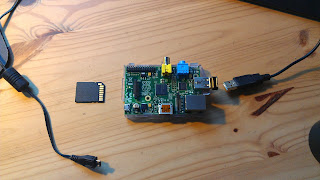
Only the Wireless dongle is in
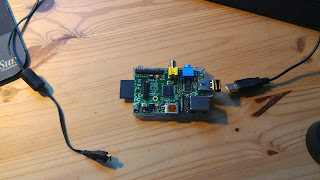
Plug the SD Card in (contains the OS)
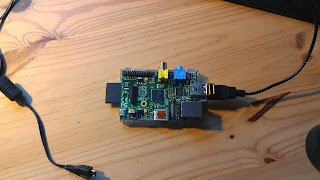
Plug in the GPS
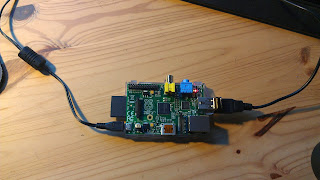
Connect the power supply
Connecting the power supply will boot the device. Now, wait a couple of seconds for Linux to boot, and we are going to connect to the Raspberry PI from another machine, using ssh.
Notice in the steps above, that there is no mouse, no keyboard, and no screen connected on the Raspberry PI. We could have done so. But we didn't.
To demonstarte the full compatibility of this scenario, we will do the subsequent operations from a Windows box.

Connect to the Raspberry PI's ad-hoc network

The wireless networks are usually available in the Windows taskbar. If not, open your Network Control Panel, you'll find it there.
Notice the network's name (RPiOnTheBoat), this is the one you defined.
Then, we will use ssh (PuTTY) to start the re-broadcast:
Connect with your username (default: pi) and password (default: raspberry), and cd to olivsoft, and start the script olivsoft:

 Prompt> ./olivsoft
    
It's on its way! You can leave the session if you wish, the process will keep going.
To stop it:
Re-connect on the Raspberry PI with ssh
Find the process, by typing:

 Prompt> ps -ef | grep java    
    
Then send it a SIGTERM signal:

 Prompt> kill -SIGTERM 2493
    
Where 2493 is the process id. This way, the process will shut down nicely (by design, it understands that signal, which would be a Ctrl+C from the command line).

The process being up and running, define a network connection in OpenCPN:
Notice the Address, the one you have defined.
Click Apply...
See the top right, the GPS is connected. As you can see in the NMEA log.
You can connect like this with as many devices as you want.
Voilà!

Next, we will try with the full NMEA station, with Pi4j. Then the HTML5 console will also be available, from http://192.168.1.1:9999/html5/console.html.

Saturday, October 26, 2013

Investigating the Raspberry PI

The more I play with it, the more I like it... It's so small - and so cheap - and it is a real Linux system, based on Debian. It comes with Java. It runs from a small SD card (4Gb recommended minimum). All the info are available on the Raspberry PI web site.

Development config

Minimal config

The GPIO can be managed with PI4J, works like a charm. Example:
----------------------------------------------------
HARDWARE INFO
----------------------------------------------------
Serial Number     :  00000000a36c8782
CPU Revision      :  7
CPU Architecture  :  7
CPU Part          :  0xb76
CPU Temperature   :  49.8
CPU Core Voltage  :  1.2
MIPS              :  697.95
Processor         :  ARMv6-compatible processor rev 7 (v6l)
Hardware Revision :  000e
Is Hard Float ABI :  true
Board Type        :  ModelB_Rev2
----------------------------------------------------
MEMORY INFO
----------------------------------------------------
Total Memory      :  459505664
Used Memory       :  240529408
Free Memory       :  219484160
Shared Memory     :  0
Memory Buffers    :  20328448
Cached Memory     :  141778944
SDRAM_C Voltage   :  1.2
SDRAM_I Voltage   :  1.2
SDRAM_P Voltage   :  1.23
----------------------------------------------------
OPERATING SYSTEM INFO
----------------------------------------------------
OS Name           :  Linux
OS Version        :  3.6.11+
OS Architecture   :  arm
OS Firmware Build :  4f9d19896166f46a3255801bc1834561bf092732 (clean) (release)
OS Firmware Date  :  Sep  1 2013 23:31:02
----------------------------------------------------
JAVA ENVIRONMENT INFO
----------------------------------------------------
Java Vendor       :  Oracle Corporation
Java Vendor URL   :  http://java.oracle.com/
Java Version      :  1.7.0_40
Java VM           :  Java HotSpot(TM) Client VM
Java Runtime      :  Java(TM) SE Runtime Environment
----------------------------------------------------
NETWORK INFO
----------------------------------------------------
Hostname          :  raspberrypi
IP Addresses      :  192.168.1.251
FQDN              :  raspberrypi.att.net
Nameserver        :  192.168.1.254
----------------------------------------------------
CODEC INFO
----------------------------------------------------
H264 Codec Enabled:  true
MPG2 Codec Enabled:  false
WVC1 Codec Enabled:  false
----------------------------------------------------
CLOCK INFO
----------------------------------------------------
ARM Frequency     :  700000000
CORE Frequency    :  250000000
H264 Frequency    :  0
ISP Frequency     :  250000000
V3D Frequency     :  250000000
UART Frequency    :  3000000
PWM Frequency     :  0
EMMC Frequency    :  100000000
Pixel Frequency   :  108000000
VEC Frequency     :  0
HDMI Frequency    :  163683000
DPI Frequency     :  0

The first goal will be to have such a device running in the chart table, reading the NMEA Data (connected on the NMEA Station through its serial port, read with GPIO, as mentioned above), and re-broadcasting the data on HTTP, TCP or UDP. The re-broadcasting part has been tested (see here), with logged data.
Next:
  • Connect the serial port, and read it from Pi4J
  • Create an ad-hoc network FROM the Raspberry PI
This way, several applications can use the NMEA Data, simultaneously. It has been tested with the NMEA Console, and OpenCPN, with TCP and UDP. The HTTP re-broadcast can be used from an HTML5 browser, from a laptop or a tablet, connected on the boat's ad-hoc network.

HTML5 NMEA Console, on a tablet

Wednesday, February 6, 2013

Version(s) 3.0.1.3

Released today the version 3.0.1.3 of the Weather Wizard, the Navigation Desktop, and the Polar Smoother.
The release includes some bug fixes, cosmetic improvements, and a decomposition of the deviation curve (in the NMEA Console), as shown below.


Click the image to enlarge.

And with the NMEA re-broadcast, the Navigation Console works like a charm with OpenCPN 3.1.1328.

Monday, January 28, 2013

OpenCPN 3.1.1328 released

A new beta of OpenCPN has just been released, it supports other channels than Serial for the NMEA data input. TCP, UDP, GPSD... That means that if you read the NMEA port from the Console, you can re-broadcast them on another channel that OpenCPN can listen to; no more Serial port access conflict, the two applications can run simultaneously, that is very cool. That also means that when you replay logged data in the console, you can visualize them in OpenCPN too. Even better!
AIS Data can also be read this way. The San Francisco Bay traffic can be seen by using a TCP connection on 207.7.148.216, port 9009

Monday, June 25, 2012

NMEA Reboradcasting, again

This post is more like a question...
This is always the same problem, most of the NMEA devices use a Serial Port, which is always accessed exclusively (i.e. by no more than one program at a given time).
The way around this exclusive access is to have the exclusive reader to rebroadcast the NMEA data using another channel, accessible from several other programs. This other channel can be HTTP, TCP, UDP... Those channels are machine, system and language agnostic. From Java to Java, RMI is also an interesting alternative.
SailMail reads the NMEA Stream to get the position of the boat, and thus is able to find the best SailMail station, provides the possibilty to rebroadcast the data it reads. Available channels are TCP, UDP, and even COM (rebroadcast on another serial port). It rebroadcasts the NMEA Sentence as it has been read, assuming - appropriately in my humble opinion - that if it is NMEA you are interested in, you know how to parse it.
There is also something else, which OpenCPN is aware of, this is GPSd.
It runs as a daemon - on the systems where daemons exist - and is only good for GPSs, not all the NMEA messages, because it's rebroadcasting the data after reworking them in another format, some proprietary classes over json (JavaScript Object Notation).
The GPSd protocol is not exactly documented, and the project leader does not return my emails...
In the NMEA Console, you can read any of those channels (Serial, TCP, UDP, RMI) and rebroadcast on HTTP, UDP, TCP and RMI (simultaneously if needed). I'm also working on a GPSd rebroadcast, running anywhere Java runs (no need for a daemon).
Anyway, both approaches have pros and cons (even if I'd rather rebroadcast the data as they come).
If anyone has any comment or idea, please speak up!
Thanks in advance.

Saturday, June 2, 2012

NMEA Stream re-broadcast

The NMEA Console (available at http://code.google.com/p/fullnmeaconsole/) is now fully aware of several communication channels, other than Serial port.
The data can be read from a Serial Port, UDP, or RMI. You can also replay NMEA Data, logged previously (the console has logging capabilities).
The data read from one of the channels above can be re-broadcasted on RMI, UDP, and XML over HTTP (there is a default html page displaying the data).
All the data are also cached in some HashMap, which means that any program living in the same JVM (or reaching it through RMI) can access them, without having to re-damp them (the damping factor is set at the "server" level, the one reading the data first). That is the case of all the modules coming with the console (Star Finder, Planetarium, Google Locator, etc).
If you have a wireless network (like Home Network) setup in the boat, then several machines can share the same data...
The next step would be to write a pugin for OpenCPN, so it can also re-broadcast the NMEA data... But that's another story, this is all in C++.
I also want to port the console (and more) on Android, to be able to display it on a table. The Tide application has been tested already, it's working good.
Keep posted, more to come!

Monday, July 12, 2010

True Wind calculation, SOG+COG vs BSP+HDG

It is a commonly admitted fact that you should calculate the true wind with the apparent wind speed and angle (a vector), to which you add the vector of the boat speed and heading.
The trick is that the boat speed and heading should not be the one taken on the water, but on the ground. That means that you need COG & SOG coming from the GPS, and not the Boat SPeed and HeaDinG returned by the instruments (like speedometer and compass).
Imagine that:
You are sailing is absolutely NO wind at all, and you have a current of 3 knots, taking you to the 270° true. The apparent wind you feel comes from the 270° true, at 3 knots. We assume that your boat speed - returned by the speedometer - is 0 knots, and we just don't care about the heading.
If you combine this apparent wind vector with the data returned by the GPS (COG=270°, SOG=3), than you appropriately find that the TWS is zero, as it actually is.
But if you use the Boat Speed returned by the speedometer, then you find a TWS of 3 knots, which is absolutely wrong!
I believe most of the stations computing the True Wind for you are in fact using the data coming from the instruments (and not the GPS). I need to check that..., but is that is the case, then there is a problem.

Tuesday, April 27, 2010

Moving to Google Code

I'll be moving the code to the Subversion repository of Google Code.
We will have at least the following projects:
- javanmeaparser
- coreutilities
- chartcomponents
- weatherwizard
- fullnmeaconsole
This way, the code will be safe. I am using Oracle's JDeveloper and its Subversion extension, that works like a charm. The Weather Wizard is using a Swing graphical interface. This is not managed nicely by an IDE like Eclipse.
The last project is this NMEA Console I have been working on.